Setting Up Repeaters/Room Servers
After flashing your device with the Repeater or Room Server firmware, you'll need to configure it before it can join your mesh network. This guide will walk you through the setup process.
Access the Configuration Portal
Once your device is flashed, you have two ways to access the configuration portal:
- Navigate directly: Go to config.meshcore.io
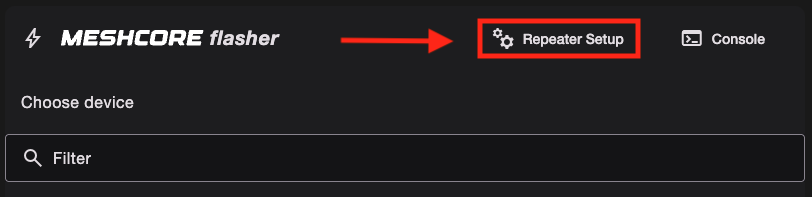
- From the flasher page: Click on the Repeater Setup button on the MeshCore Web Flasher page
- After you flash: Click on the Configure via USB button

Repeater Information
The top section is the Repeater Information. This displays important details about your repeater device.
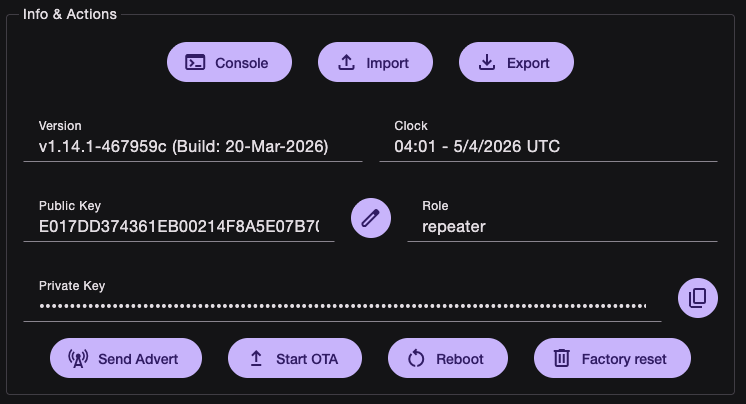
Look at the public key. The first 2-6 characters (1-3 byte or hex prefix) is what will be used as for the path in packets. If your prefix collides with a another repeater, we kindly ask to change your key. Please visit our Discord to get set up with a new key.
| Button | Description |
|---|---|
| Send Advert | Sends a flood advert of your repeater's name, public key, and location across the mesh |
| Start OTA | Can be used to upgrade firmware without the flasher |
| Reboot | Reboots device |
| Factory Reset | Erases device. Restores factory defaults |
Name and Location
Next, you'll configure the Name and Location for your repeater. This helps you identify and manage your repeater on the mesh.
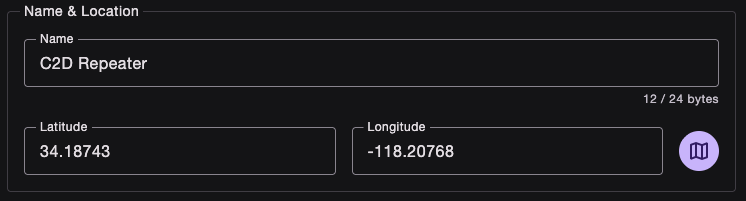
Enter a descriptive name and location for your repeater. You can use the map button to select a location on the world map. This information will be visible on the mesh.
Password
Set up a password for your repeater to secure access to its configuration.
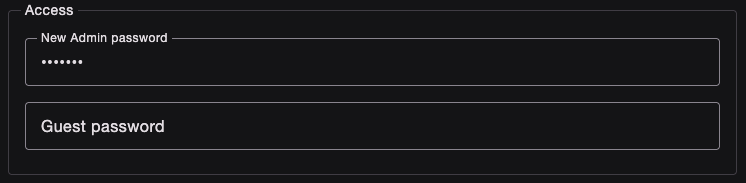
The guest password allows users to log in to see your repeater stats. They will not be able to control your repeater. For room servers, this allows users to log in to see/leave messages. Leave blank if you want anyone to access it.
The admin password allows users to log in and control your repeater or room server. Choose a strong password that you'll remember. This is the password you will be using to access your repeater to edit its configuration.
Radio Settings
Configure the Radio Settings for your repeater. This is how your repeater will get on the mesh.
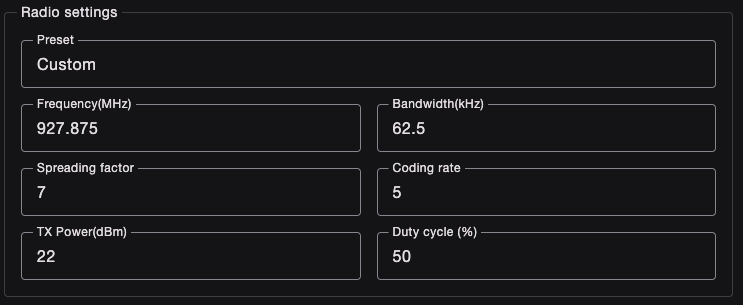
Adjust the settings according to your network region. Not everyone uses the US Defaults. Here's a list of freqencies used by West Coast Mesh regions:
| Region | Frequency | Bandwidth | Spreading Factor | Coding Rate* |
|---|---|---|---|---|
| SoCal | 927.875 | 62.5 | 7 | 5 |
| Bay Area (default) | 910.525 | 62.5 | 7 | 5 |
| Sacramento-Foothills | 909.875 | 62.5 | 9 | 5 |
| Central Valley (default) | 910.525 | 62.5 | 7 | 5 |
| Central Coast (default) | 910.525 | 62.5 | 7 | 5 |
| Pacific Northwest (default) | 910.525 | 62.5 | 7 | 5 |
*Coding Rate is per device specific. You can be on a different coding rate and still reach the mesh. Every other parameter has to match.
Some devices have an amp, so the TX power needs to be set accordingly. Here is a list of devices with amps.
Duty cycle is for Europe. They have different RF regulations.
Advertising
This is how often your repeater sends an "advert" on the mesh. Please change it. We recommend 0 for Advert interval and 12-48 (I prefer 47) for Flood advert interval.

You can keep Flood max as is, unless you want to limit you hop count.
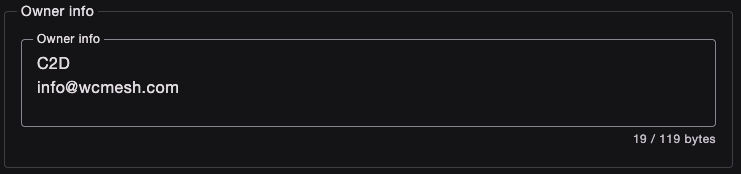
Owner info
Owner info can be seen by anyone who logs in to your repeater via guest login. Set it to your on-mesh name, Discord username, or email, whichever is the best way to contact you if we see an issue with your repeater.
Advanced settings
Click the checkbox next to Show advanced settings to bring up more settings.
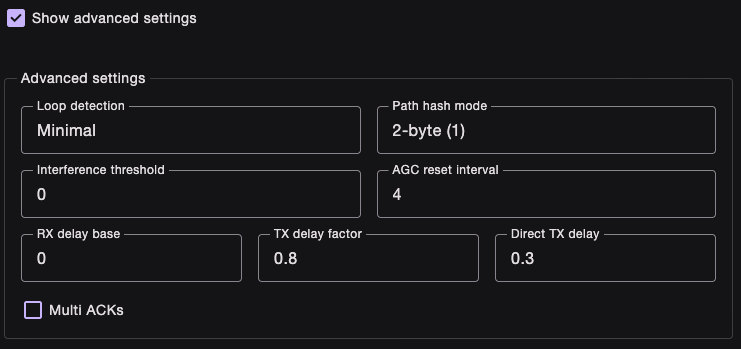
| Setting | Description |
|---|---|
| Loop detection | Drops flood packets if its own path ID appears “too often” in the path |
| Path hash mode | Sets how large the path hash is in originating packets |
| Interference threshold | Local interference / clear-channel threshold, in dB above the tracked noise floor |
| AGC reset interval | How often the SX1262 AGC is reset, in seconds, in steps of 4 seconds |
| RX delay base | The stack can hold flood packets before upper layers see it |
| TX delay base | Wait a random time before transmitting so neighbors don’t all collide |
| Direct TX delay | Same as TX delay but with direct packets instead of flood |
Feel free to check out the white papers to get a better understanding of delay factors.
Console Access
To access the console for advanced configuration or troubleshooting, you can use the console interface on the web flasher:
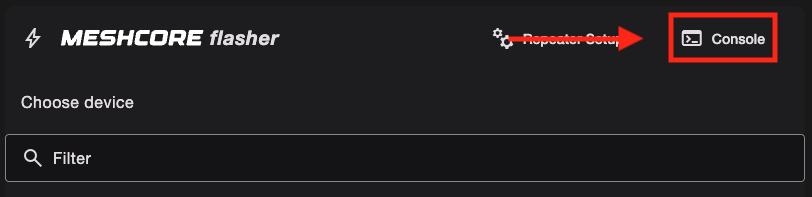
The console provides direct access to your repeater's command interface for advanced operations. Type a command, like set prv.key, next to the prompt.
A list of repeater/room server commands can be found here. These commands can also be used via remote access.
Next Steps
Once you've completed the configuration:
- Review your settings and click
Save settings - After rebooting, sync the clock
- Click on
Send Advertso others can see your node. - It will begin relaying messages between mesh nodes (if configured as a Repeater)
- It will store messages for retrieval (if configured as a Room Server)
- You can manage and monitor it through the configuration portal
- If you ever reboot your device, you need to sync the clock. Refer to CLI commands.